The best USB audio interface fits what you need to record. Two mic inputs are plenty for a singer and guitar, or a host and guest. But what if a third person pulls up a chair? You are out of inputs.
I would count inputs and headphone feeds before comparing sound-quality claims. Clean mic preamps matter. So does a knob you can reach. A clear meter helps you spot trouble at a glance.
These four USB audio interfaces suit small home recording setups. Each can take two sound sources into a computer. The key is how they fit your work. Look at gain tools, meters, routing, and the way you hear each take.
| USB audio interface | Best fit |
|---|---|
| Scarlett 2i2, 4th Gen | Two sources, with help setting and guarding gain |
| MOTU M2 | A clear view of input and output levels |
| SSL 2+ MKII | Two people who need separate headphone levels |
| Universal Audio Volt 2 | Simple recording with a switchable Vintage mode |
1. Scarlett 2i2: my best USB audio interface for a first setup
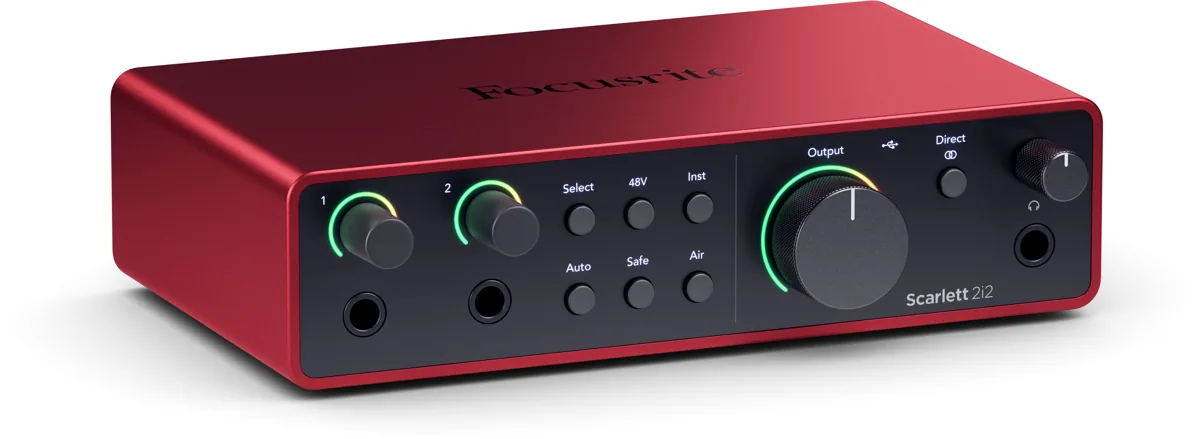
The Scarlett 2i2, 4th Gen earns my first pick through useful controls. Its two mic preamps offer up to 69 dB of gain. Auto Gain helps set the level, while Clip Safe can lower gain if a take gets too loud.
That is welcome when you are both the performer and the person pressing record. I would still leave room for loud peaks. Clip Safe is a guardrail, not a reason to push every phrase close to red.
The Scarlett 2i2 also has Air modes for added presence and harmonic drive. I would start with those off. Record a short phrase. Then compare the mode at the same level. A louder version can seem better even when the tone is not what you need.
For live streaming, its loopback channels can bring computer playback into a recording app. Focusrite's Scarlett loopback guide explains the routing. This helps with a web clip or a remote guest. But do not send the guest's own voice back to them.
The catch: there is one headphone output and no five-pin MIDI ports. The front instrument inputs share the two channels with the rear mic sockets. They do not add two extra channels. It is a two-input audio interface, even though you can see four input sockets.
I would buy the Scarlett 2i2 for a solo creator who records a mic and instrument, or a pair of podcast voices. I would choose a larger audio interface if three or more microphones were part of the plan. Extra gain cannot make up for a missing input.
2. MOTU M2: the best fit if you want to see your levels
The MOTU M2 puts a color level display on the front. It shows input and output levels. That tells you more than one light that changes color near a limit.
I would choose it for a desk where the audio interface sits in plain sight. When a voice disappears, a meter helps narrow the cause. Is the mic reaching the interface? Is the computer sending playback back out? Clear feedback can save more time than another software effect.
The M2 has two front combo inputs, one headphone output, monitor outputs, and MIDI connections. Each mic input has its own phantom power and direct-monitor switch. That is a tidy set of controls for a compact interface.
Two M2 owners in a music-production discussion describe years of use without problems. One also points out that delay depends on buffer settings. Those are useful owner views. They cannot tell us how often units fail. Nor do they promise the same result on every computer.
The catch: there is no Auto Gain tool here. You set the gain yourself. There is only one headphone feed. Two people cannot each set their own level at the box. MIDI is useful if you have gear with five-pin ports, but it will not improve the sound of a microphone.
MOTU promotes low latency performance, and it supplies drivers for the M series. I would judge the feel on the laptop and app you plan to use. A delay measured on one computer may not match yours.
3. SSL 2+ MKII: my pick for two people sharing a desk
The SSL 2+ MKII gives you two mic preamps, four balanced line outputs, MIDI, and dual headphone outputs with separate level controls. That last feature is the reason I would choose it over a simpler two-input box.
A singer may want loud headphones. The person at the desk may want them much softer. The SSL 2+ MKII lets them set those levels without passing one knob back and forth. It can also feed each set of headphones from a different pair of computer outputs.
The two mic preamps have a 64 dB gain range. A high-pass filter can reduce low rumble, and the Legacy 4K circuit adds a brighter tone and harmonic color. I would use the clean path first, then add color only if it helps the voice or instrument.
There are front instrument inputs and rear mic/line sockets, but still only two analog input channels at once. SSL lists 32-bit converters. That does not mean a hot analog input can never clip. Set input gain with care.
The catch: it takes more desk space than a very small front-facing box, and its extra routing may be more than a solo host needs. The useful reason to pay for it is the outputs and headphone control, not the hope that the brand will transform a poor recording.
Need two headphone feeds or extra speaker outputs? This USB audio interface fits those jobs. For one mic and one pair of headphones, the simpler picks may be enough.
4. Universal Audio Volt 2: simple controls and a choice of color
The Universal Audio Volt 2 has two mic/line/instrument inputs, MIDI, one headphone output, and a switchable Vintage preamp mode. It is a USB bus-powered audio interface. It also has a power inlet for setups that need it.
I like the clear division of tasks on this box. Input gain sits by each input. Speaker level and headphone level have their own controls. The Vintage switch changes the tone as it goes in. There is no extra screen to learn.
There is no built-in analogue compressor on the Volt 2. Do not assume it has all the tools shown in the Volt range. It also does not add onboard processing power for the full set of Universal Audio plug-ins. The software uses your computer's power. Check which plug-ins your license lets you use.
The Volt 2 hardware manual explains its direct-monitor modes. You can hear both voices in the center. Or split them left and right for stereo sound. With the direct path on, turn off input monitoring in the app. That stops you hearing a delayed copy too.
The catch: the Volt 2 does not have the gain help of the Scarlett 2i2 or two headphone feeds like the SSL. I would not make it my first choice for a streaming setup that depends on built-in loopback. Work out the computer-audio routing before buying.
Universal Audio Volt 2 suits a simple home recording job. Capture a voice or guitar. Hear it without software delay. Shape the mix later. I would leave Vintage off when I want the most flexible clean file. Once input color is recorded, it is part of the take.
What does a USB audio interface actually do?
An audio interface is the link between microphones, instruments, speakers, and a computer. It turns analog audio signals into a form the computer can record. It turns computer playback into audio signals for headphones and speakers, too.
The mic preamps boost the faint mic signal first. Instrument inputs accept a guitar or bass directly. Line inputs take a stronger signal, such as the output of a keyboard.
USB carries audio and control data between the computer and the box. In a bus-powered design, the same cable can also carry power. That keeps a small recording setup neat. But the computer port must supply enough power.
If you already have a USB microphone, you may not need a separate audio interface for it. The microphone already contains a small interface. Most audio interfaces take analog inputs, not another USB mic plugged into their USB port.
For a first voice setup, our podcast equipment guide explains when a USB mic is enough and when XLR microphones make more sense.
Count sources before you count sockets
The number printed on an audio interface can be confusing. A two-in, two-out unit usually means two recording channels and two playback channels. It does not always mean two mic inputs, and it says nothing about how many people can each control their headphones.
A combo socket takes an XLR or a quarter-inch plug. It takes one at a time. That gives one input more uses. It does not create two channels. Front instrument sockets may also share channels with sockets on the rear.
Write down what must record at the same time. A voice and mono guitar need two inputs. A stereo keyboard uses two line inputs on its own. Add a vocal mic and you need three. A full drum kit recorded with several microphones needs more inputs again.
For home recording, buy for the session you can name. I would not double the budget just in case an unknown future project grows. But I also would not buy just two inputs for a weekly three-person show.
| Session | Starting count |
|---|---|
| One voice | One mic input |
| Two speakers | Two mic inputs |
| Voice and guitar | One mic plus one instrument input |
| Stereo keyboard and voice | Two line inputs plus one mic input |
Mic preamps, gain, and phantom power
Gain controls how much the mic signal is boosted before it reaches the recording app. A quiet talker on a low-output dynamic mic may need more gain than a loud singer close to the same microphone.
High quality preamps are useful. But do not choose by the gain number alone. You also want a low noise floor, clean input levels, and enough room before a loud sound clips. Moving the mic closer may improve the result more than buying external preamps.
A condenser mic often needs 48 V phantom power. The audio interface sends that power through the XLR cable. A typical moving-coil dynamic mic does not need it. Check the microphone's own instructions, especially for ribbon mics or unusual adapters.
Lower the monitor level and switch phantom power off before connecting or disconnecting a mic. Once everything is connected, enable phantom power if that mic needs it. Wait for it to settle, then set gain.
Phantom power and instrument mode do different jobs. Phantom power supplies a mic. Instrument mode changes the input for a guitar or bass. Do not treat either switch as a general sound-quality boost.
If you hear hiss, check the whole path. Is the microphone too far away? Is the app adding gain after a very low recording level? Is a laptop fan louder than the preamp noise? A new USB audio interface will not solve every source of hiss.
Direct monitoring versus low latency performance
Latency is the delay between making a sound and hearing it back. It is hard to speak when your own voice comes back a beat late. It can also make playing through software guitar effects feel slow.
Direct monitoring sends the input to the headphones through the hardware path. It avoids the round trip through the computer's recording buffers. That is often the easiest way to record audio for speech or a clean voice track.
There is a catch. Direct monitoring skips the effects in the app. Need to hear a software amp as you play? Use the sound from the app. That is where low latency performance matters more.
Use the correct driver and try a smaller buffer. If the sound clicks or breaks up, raise the buffer until playback is stable. The best setting varies. It depends on the computer, sample rate, app, and effects in use.
On Windows, use the maker's supported ASIO driver when your recording app supports it. On Mac, follow the maker's current setup guide. A driver update can change behavior, so test after updates before an important session.
I would never choose the best USB audio interface from a single latency number alone. Stable recording on your computer is the goal. A fast setting that drops samples is not a win.
USB-C is a plug shape, not a sound-quality grade
A USB-C connection can be handy. But the socket shape does not tell you the audio quality. Two channels do not need the speed of every new USB standard.
Use a data cable, not a charge-only cable. Does the box appear as a USB device? If not, try the supplied cable in a direct computer port first.
A hub adds another link in the chain. It may work well. But it shares power and data paths with other gear. Start with the audio interface connected directly. Add the hub only after that basic setup works.
Bus-powered gear is neat on a desk. It can be less simple with a phone or tablet that limits power. Check mobile-device support and any external power supply requirements for the exact model. A USB-C port alone is not proof of support.
Studio monitors, line outputs, and headphones
The main outputs feed powered studio monitors or a separate speaker amp. They are not speaker-power outputs. Plugging passive speakers straight into a line output will not give them the power they need.
Balanced TRS outputs and cables can help cut noise on the way to studio monitors. Keep cables short where you can. Check that both ends support a balanced link.
For recording a voice near a microphone, use headphones and turn down the speakers. That keeps playback out of the take. Once recording is done, studio monitors give you another way to judge the mix.
Two headphone sockets can mean several things. They may share one mix and level. Or they may let each person choose both. The SSL 2+ MKII offers more control here than a simple split headphone feed. Check what the model actually routes.
A powerful headphone amp helps drive less sensitive headphones. It is not a reason to listen loudly. Start low and raise the volume only as far as you need for a clear view of the recording.
Loopback for live streaming and remote guests
Loopback makes computer audio available as a recording input. That can be useful for live streaming, a screen demo, or a remote interview. It is separate from the mic sockets.
Plan where each sound goes. Your audience may need to hear the mic, guest, and a video clip. The guest should usually hear you without a delayed copy of their own voice. This return feed is often called mix-minus.
USB audio interfaces vary in how they route loopback. Some rely on a driver or control app. Check support for your operating system and the current firmware. A tool shown in a Windows guide may work a different way on Mac.
Before a live stream, make a private test recording with every source active. Speak, play the clip, and have the guest talk. Listen for echo, missing channels, and a big jump in volume. A clean mic test alone does not prove the full mix is right.
Sample rate, bit depth, and the lure of bigger numbers
A 48 kHz sample rate is a sensible starting point for most speech and video work. For a music project, match the session's needs. A higher sample rate uses more space and power. It can also limit some features.
Bit depth is part of how a file stores sound levels. A 24-bit recording gives useful room to leave headroom. You do not need to fill every meter to get a clear file.
A converter listed as 32-bit does not make every part of the recording path immune to overload. The microphone, analog input stage, and chosen settings still have limits. Judge sound quality by the result, not just the largest number on the box.
All four picks can handle clear speech and home music production. A quiet room, a strong take, and a well-placed mic can do much more. Tiny changes in the specs may be hard to hear.
Do not let a software bundle choose the box
An included software bundle can help you start. It may include an app, effects, or sound tools. Some may be trials. Read the current list and registration terms, because the bundle can change.
If you already use Ableton Live Lite, Pro Tools, or another recording app, check the interface works with that setup. You can keep the app you know.
I would compare the hardware first: inputs, outputs, mic preamps, driver support, and controls. A pile of plug-ins will not add a missing headphone feed. Nor will it make great guitar tones without a suitable instrument input, playing, and amp or effect choices.
Make the first week a real compatibility check
Set the USB audio interface up while you can still return it. Record audio with the microphones and instruments you own. Test headphones, speakers, and the app used for calls or live streaming.
Try a long session, not just a ten-second clip. Put the computer to sleep and wake it. Reopen the recording app. Check that the right input and output return. These habits can matter more than a tool you use once a year.
If the sound is thin, check the monitor path. You may be hearing the direct sound plus a delayed copy. If only one speaker works, check the cable and output routing. If a keyboard is in stereo, use two line inputs and a stereo track.
A hollow voice is more likely to need a room or mic-placement change than a new audio interface. Our acoustic panel picks cover the reflections that can blur a recording.
For my own shortlist, the Scarlett 2i2 stays first for a simple two-source setup. The M2's meters, SSL's headphone control, and Volt 2's direct approach each solve a different need. Pick the USB audio interface that removes the most friction from the session you want to make.